Events View - Features & Usage
The event view provide a flexible and clear overview of all related events, tasks, and activities. They support workflows for both devices and tasks.
Main functions
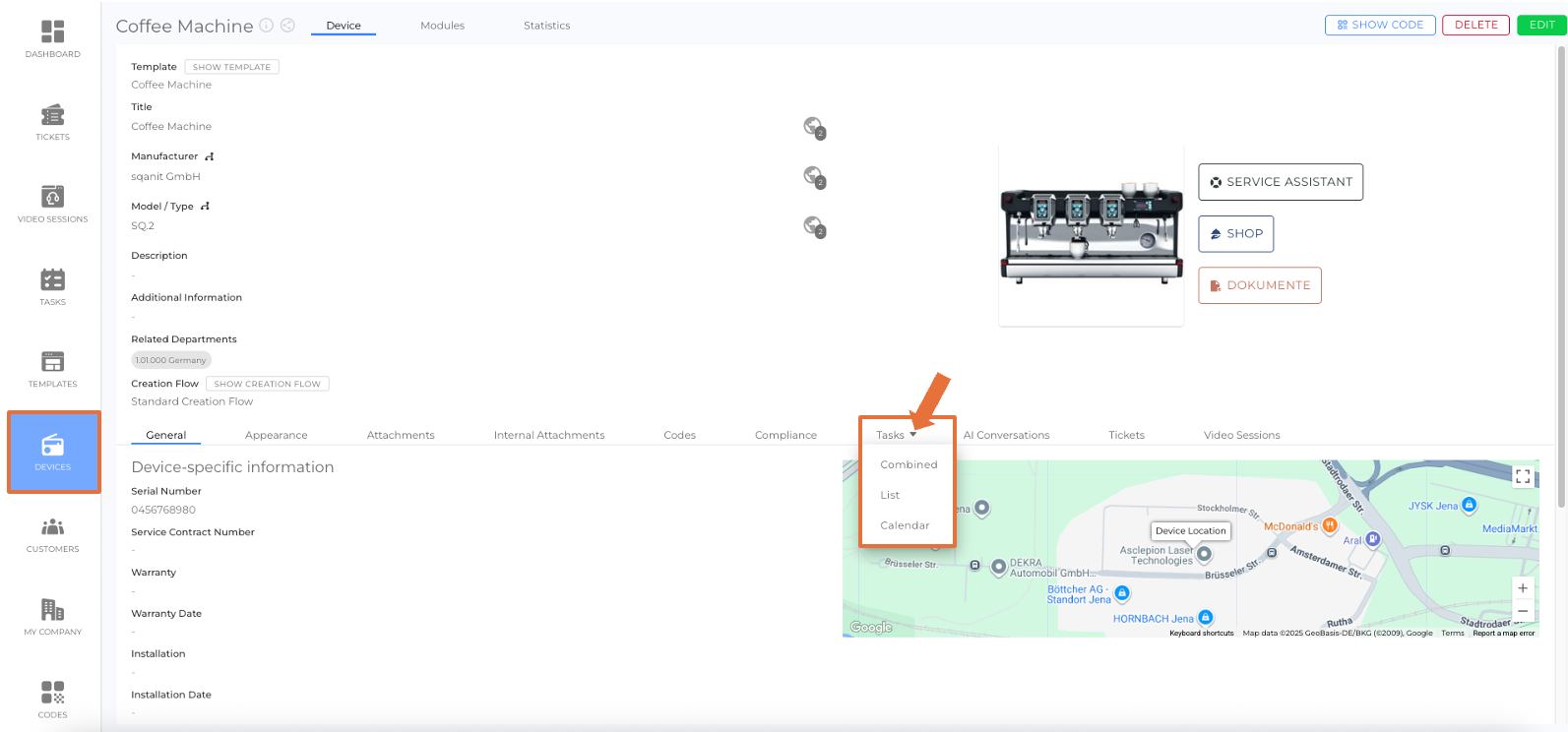
- Switch view: Change between Combined, List, and Calendar as needed.
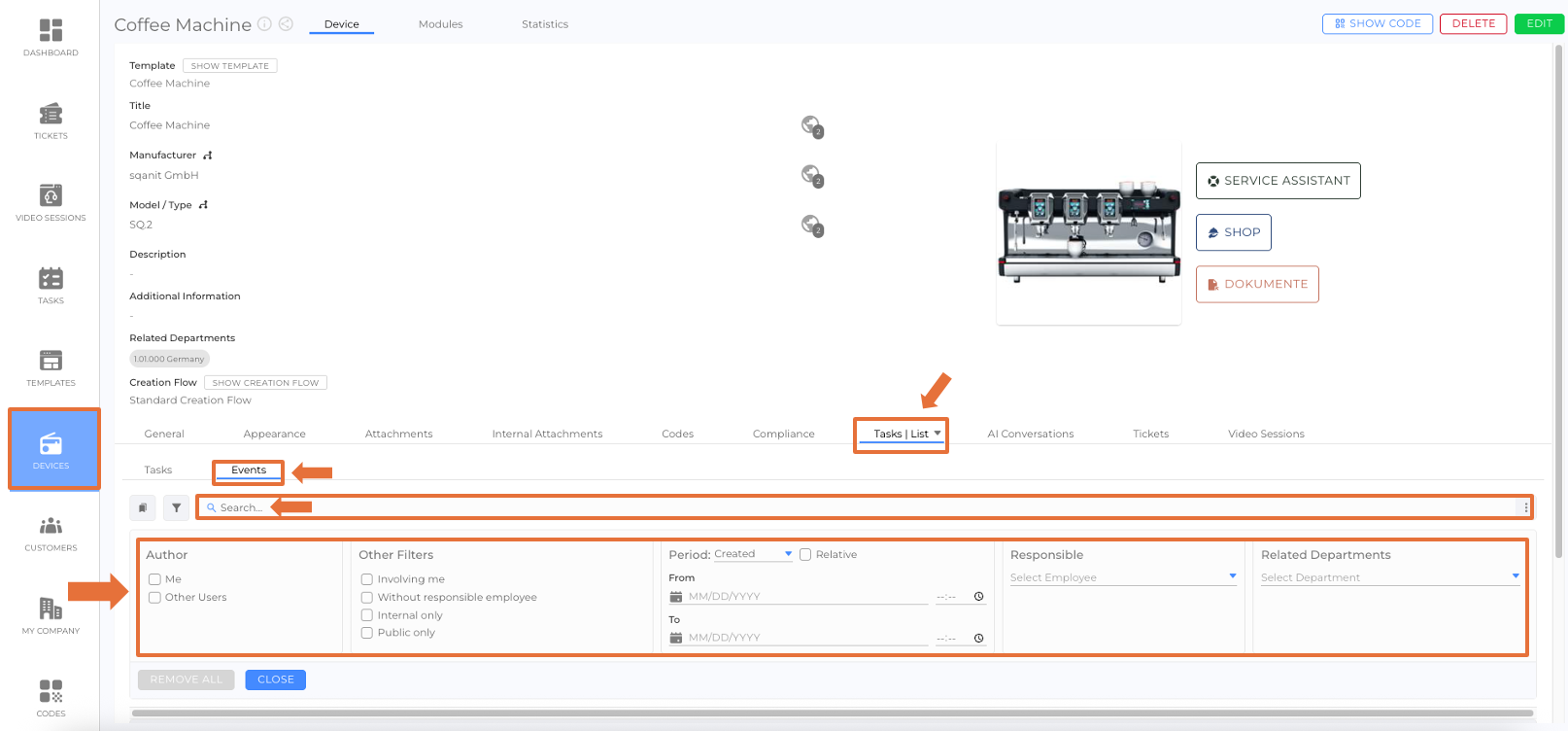
- Filter & Search: Filter events by author, other filters, period, responsible, label, and related department. You can also enter a search term in the search bar.
- Direct access: Clicking an event opens its details, actions, or linked entities.
- Synchronized display: Changes — such as a status update — are instantly reflected across all views.
Where can I find the views?
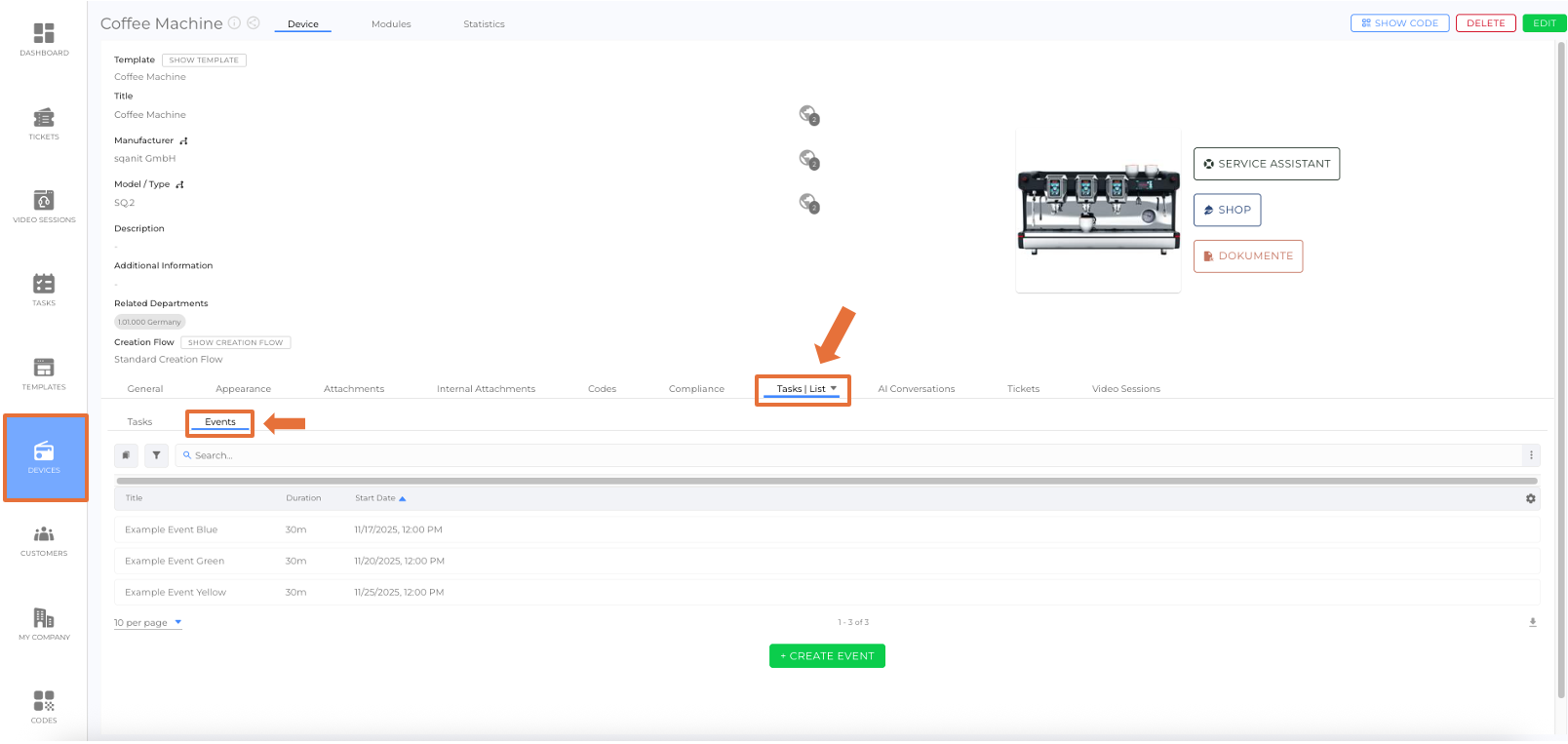
- Devices view: For any created device, the event and list views are available (open the device → Events).
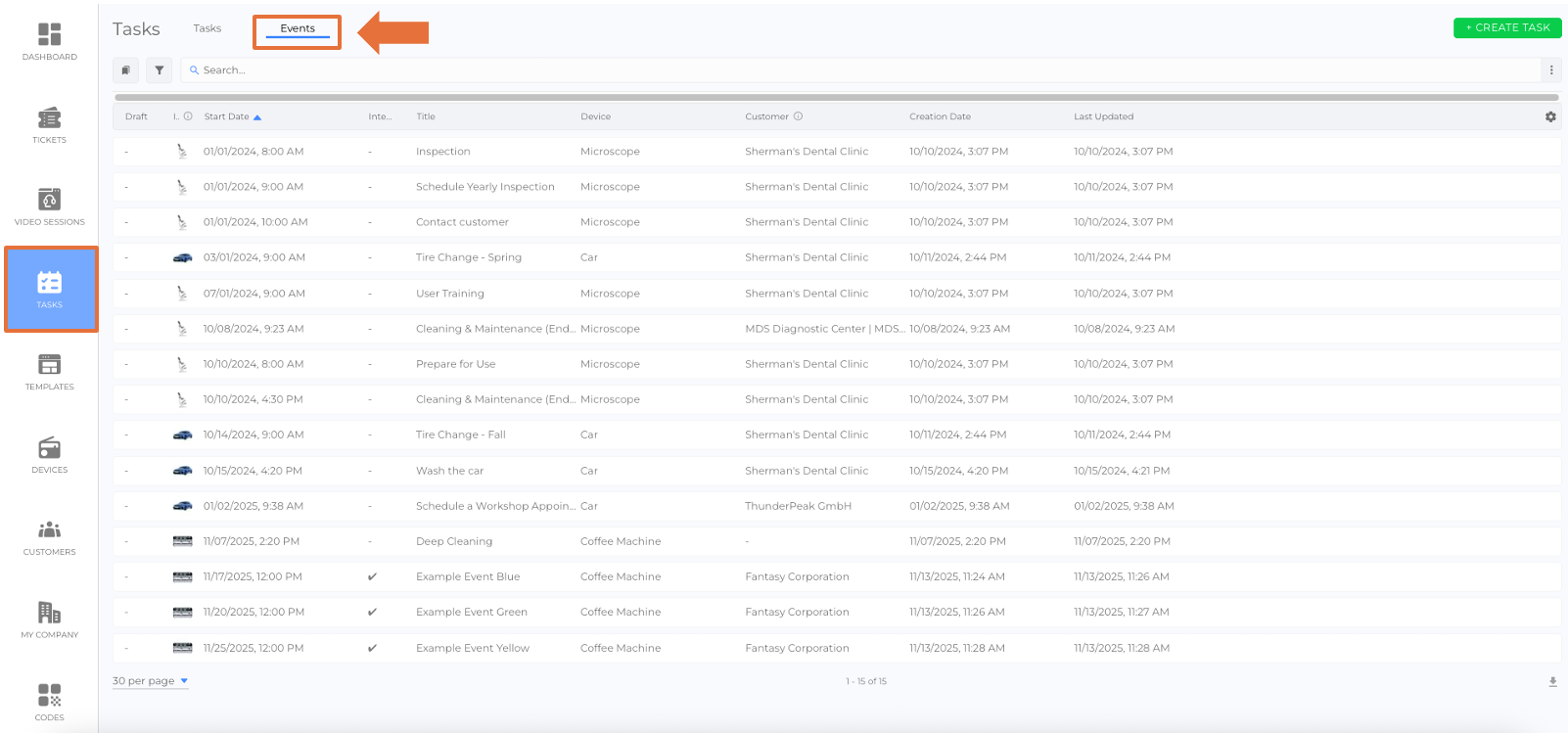
- Tasks module: There is a dedicated tab that displays the events in a list view.
Access Event views
- Open device or task.
- For devices: Open the desired device → select the Events section (see example image 1).
- For tasks: Open the Events tab (see example image 2).
- Select view: Choose between Combined, List, or Calendar (available only in the Devices module) (see example image 3).
- Set filters: Filter by author, other filters, period, responsible, label, and related department; optionally enter a search term (same for Devices & Tasks) (see example image 4).
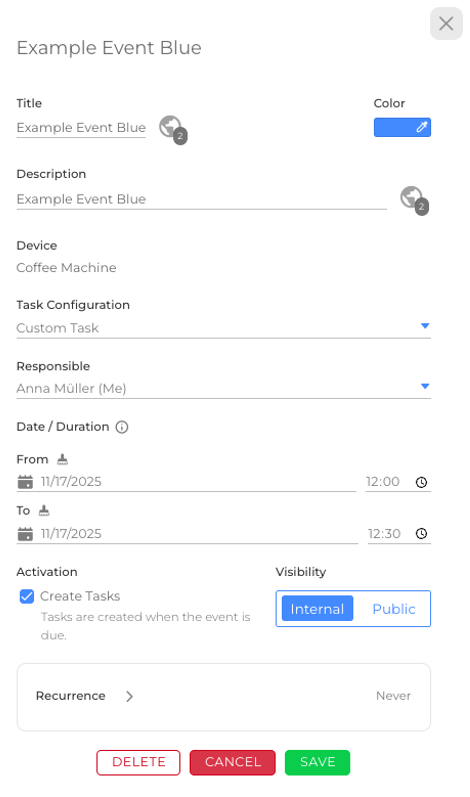
- Select an event: Click an event to view details or perform actions. To perform actions, click the pencil icon next to the event title (same for Devices & Tasks).
Tips
- Use the Calendar for a quick monthly/weekly overview.
- Use the List when you need powerful filtering, sorting, or search.
- Save frequently used filters as favorites (if available) for faster navigation.
Was this article helpful?
YesNo
 We use cookies on our website to give you the most relevant experience by remembering your preferences and repeat visits. By clicking “Accept All”, you consent to the use of ALL the cookies. However, you may visit "Cookie Settings" to provide a controlled consent.