Overview
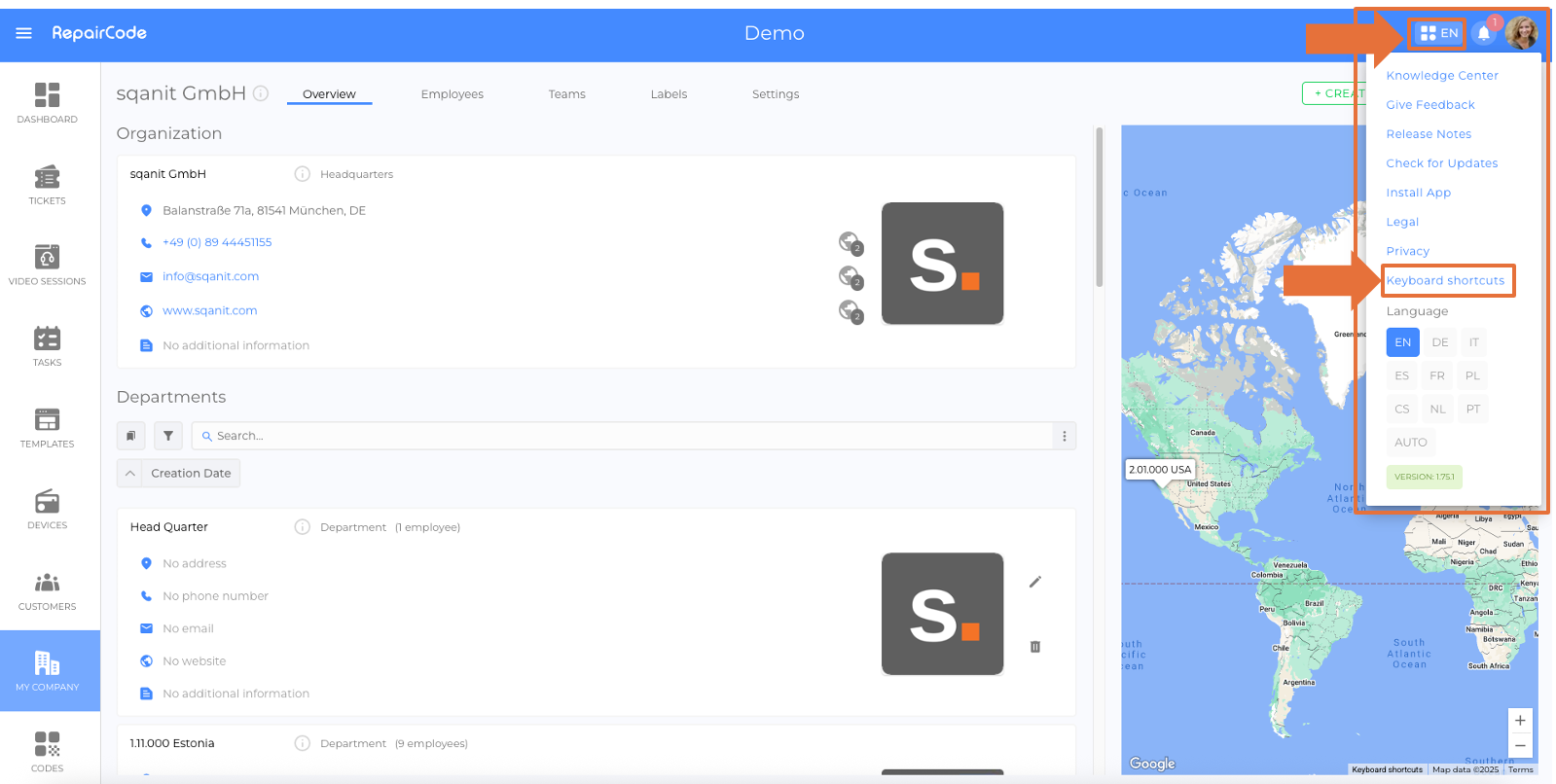
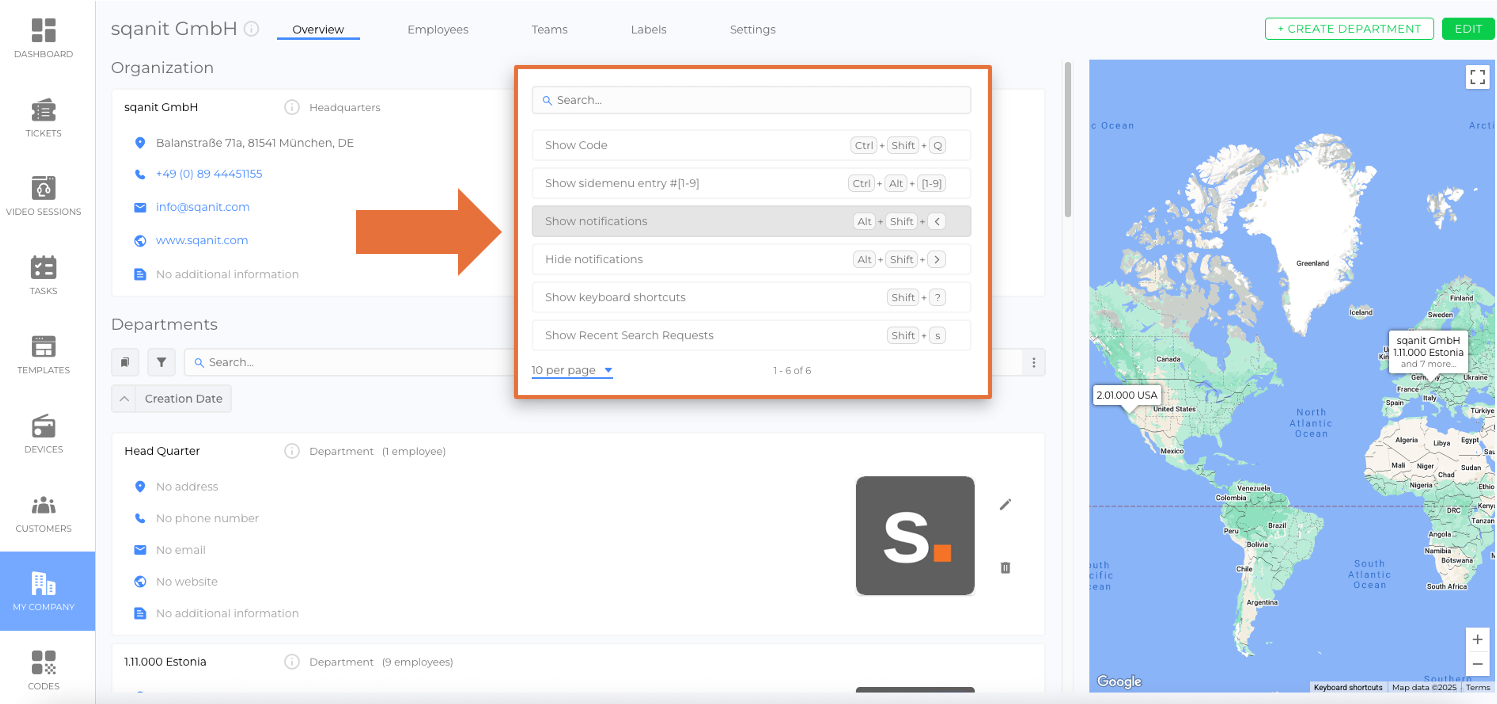
The Keyboard Shortcuts button in the help menu opens a panel listing all shortcuts currently available in your sqanit Back Office.
This helps switch navigation and access across the platform using the keyboard.
Open the shortcuts pop-up
- Open the Back Office.
- In the help menu on the top right corner, click Keyboard Shortcuts
- The pop-up shows the complete list of shortcuts available for your role and modules.
The shortcut view pop-up - changed text
- Action: The command (e.g., Show Code, Show notifications, Show Recent Search Requests).
- Shortcut: The key combination for your operating system/layout.
- Context: Where the shortcut applies (global, lists, details view, editor, etc.).
Notes:
Available shortcuts can vary depending on enabled modules and your permissions.
Also, if your application language or keyboard layout differs, the displayed key symbols may change accordingly.
Troubleshooting
- Shortcut doesn’t work: Ensure the focus is in the correct area (e.g., list vs. editor). Browser/system-level shortcuts may override app keys.
- Symbols differ from your keyboard: Check your operating system layout and application language settings.
- Button not visible: Your role or company configuration may hide it. Contact an administrator.
Was this article helpful?
YesNo
 We use cookies on our website to give you the most relevant experience by remembering your preferences and repeat visits. By clicking “Accept All”, you consent to the use of ALL the cookies. However, you may visit "Cookie Settings" to provide a controlled consent.