Definition
The Customizable Notification Email Templates feature allows organizations to personalize the appearance of their notification emails.
Description
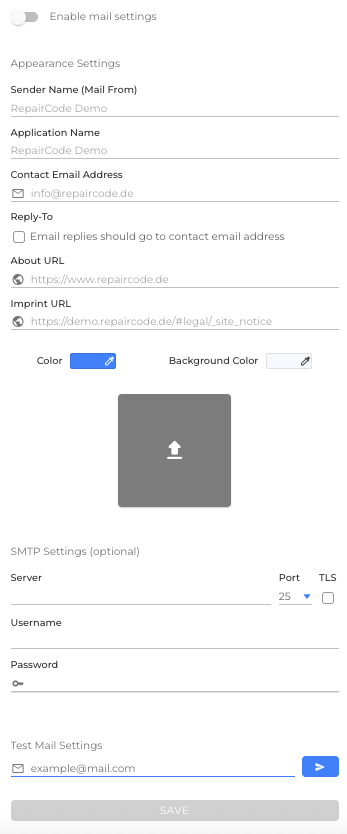
Administrators can customize the logo, sender name, color scheme, and configure a dedicated SMTP server to align all outgoing emails with the organization’s corporate design and send them through the company’s own mail infrastructure. In addition, the contact email address defined in the organization mail settings can be used as the reply-to address for notification emails, ensuring that replies are sent directly to the organization’s configured contact address and communication is centralized.
Function & Usage
- Open the Organization settings tab and find the Mail Settings section.
- Toggle Enable mail settings to enable or disable the settings.
- Upload your organization’s logo, define the desired sender name, and choose a color scheme to match your brand.
- Optionally, you can configure a Custom SMTP server to send notification emails via your own infrastructure.
Notes
- All notification emails sent by the organization will use the customized design and settings.
- If no custom SMTP server is configured, the default mail service will be used.
- Logos and colors should meet the recommended format and resolution requirements for optimal display.
Benefits
This feature helps organizations maintain brand consistency in their email communication and provides users with a more professional and trustworthy experience.
Example
As an example, a company can add its own logo to the email header, adjust the primary color to match its corporate palette, and set the sender name to the company’s brand name. This ensures that all outgoing notifications reflect the organization’s visual identity.
 We use cookies on our website to give you the most relevant experience by remembering your preferences and repeat visits. By clicking “Accept All”, you consent to the use of ALL the cookies. However, you may visit "Cookie Settings" to provide a controlled consent.