Definition
A Video Session Creation Flow is a configurable sequence of steps that users follow when creating a new Video Session. The flow ensures that all required information is collected before the session begins, enabling efficient and consistent creation of video support sessions, remote meetings, or online appointments.
Purpose
The creation flow simplifies, standardizes, and structures how video sessions are created. By defining steps in advance, administrators ensure that all relevant information—such as the customer, device, session reason, and labels—is consistently captured.
Previously created video sessions can be reopened and continued seamlessly. All prior data, connections, and settings are restored automatically.
Note: Uploaded videos in a session may undergo client-side compression depending on system configuration. If used, this helps reduce upload times while maintaining acceptable quality.
Creating a Video Session Creation Flow
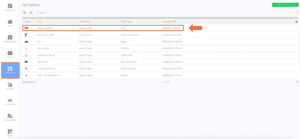
- Open Templates in the Back Office and select a template. (Example image 1)
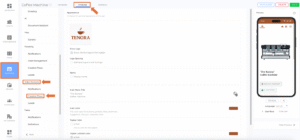
- Go to the Modules tab and open Video Session Creation Flow. (Example image 2)
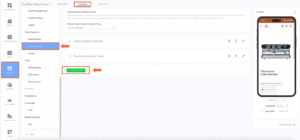
- Click on the + New Flow. (Example image 3)
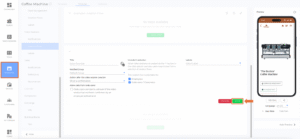
- Add Title and make desired configuration in the view and Save. (Example image 4)
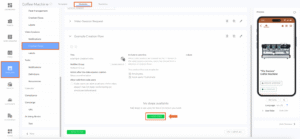
- Click the + Add Step button to add the desired steps and arrange them in the correct order. (Example Image 5)
You can find all relevant information on this in the next section, “Video Session Creation Flow Step Types”, of this article. - Click Save to apply the configuration.
Video Session Creation Flow Step Types
Each Video Session Creation Flow can contain multiple step types. Each step guides the user and collects important information before starting the session:
- Reason: The user specifies the reason or purpose of the video session.
- Video Session Requester: Captures the name of the person requesting the video session. (This does not assign a role; it simply identifies the requester.)
- Recording Permissions: Allows the requester to give or decline consent for recording during the session.
- Notifications: Shows which notification channels are used and allows the user to select optional channels when available.
- Info: Displays important informational messages needed during session creation.
- Labels: Allows users to add labels for organization, filtering, or categorization.
Integration with Other Modules
- Assistant: The creation flow can be triggered via the Assistant for guided session creation.
- Module Buttons: Users can open the flow directly via a dedicated button.
- Labels: Labels can be automatically applied by the flow and users can add additional labels during creation.
Copying Creation Flows
Video Session Creation Flows can be reused across templates for faster setup:
- Open the existing creation flow.
- Click “Copy to Other Template.”
- Select the target template and confirm.
Benefits
- Standardization: Ensures consistent session creation processes across templates.
- Efficiency: Faster setup with reusable and predefined steps.
- Flexibility: Steps and their order can be fully customized.
- Traceability: Labels and structured steps support better reporting and organization.
 We use cookies on our website to give you the most relevant experience by remembering your preferences and repeat visits. By clicking “Accept All”, you consent to the use of ALL the cookies. However, you may visit "Cookie Settings" to provide a controlled consent.