Table Of Contents
Introduction
To save time, the content and settings of modules and submodules can be copied from one template (= source template) to another template (= target template). When copying module items or module groups to other templates, a confirmation dialog is displayed to ensure that the action is performed intentionally and to help prevent unintended changes to existing templates.
WARNING: The existing content and settings of the target template will be overwritten and irretrievably lost.
Copying Modules & Submodules
Step-by-Step Instructions
- Select Templates from the side menu.
- Select a template (=source template) from which you want to copy content or settings.
- Select the Modules tab.
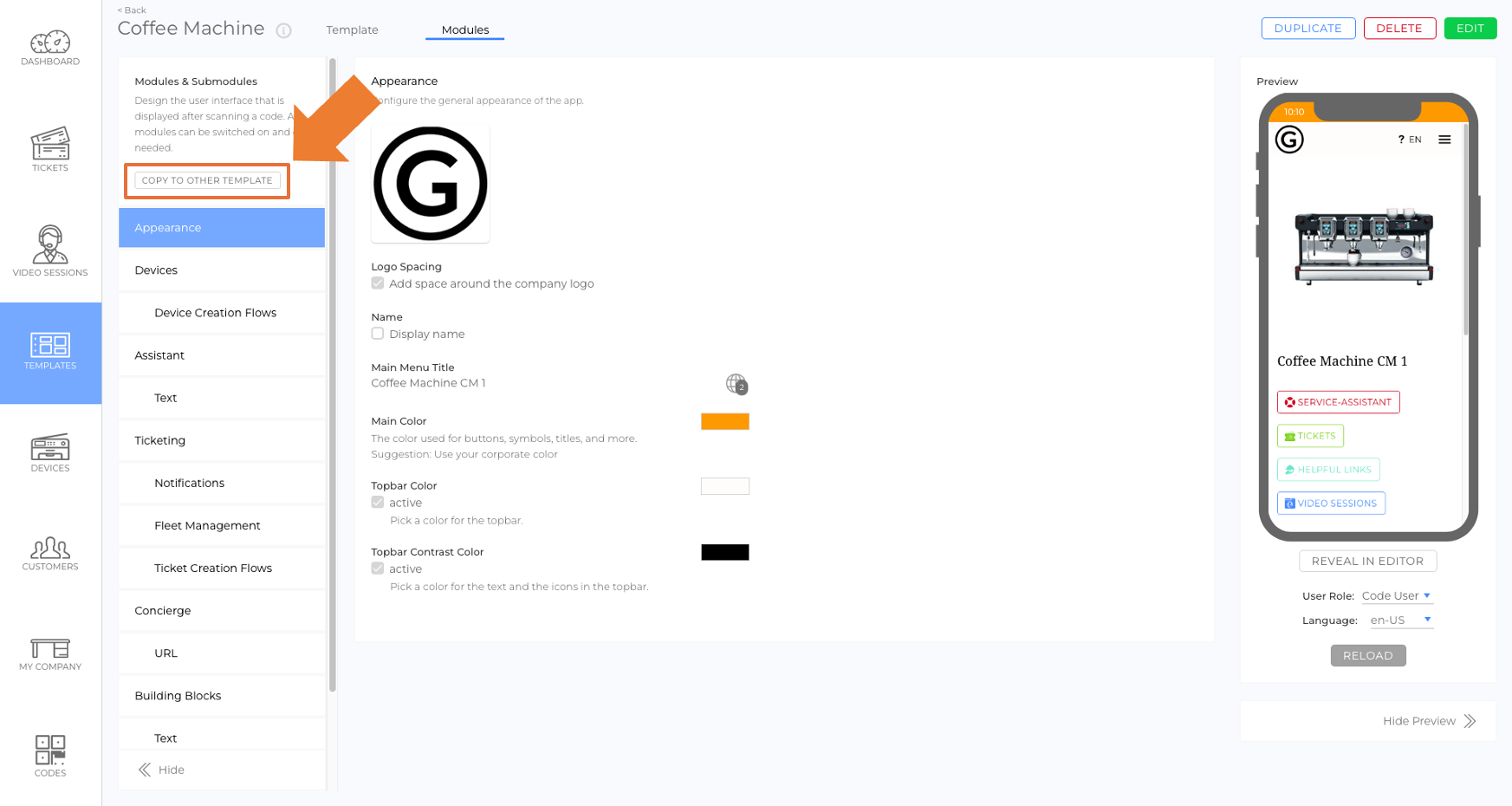
- In the top left corner, click copy to other Template (picture).
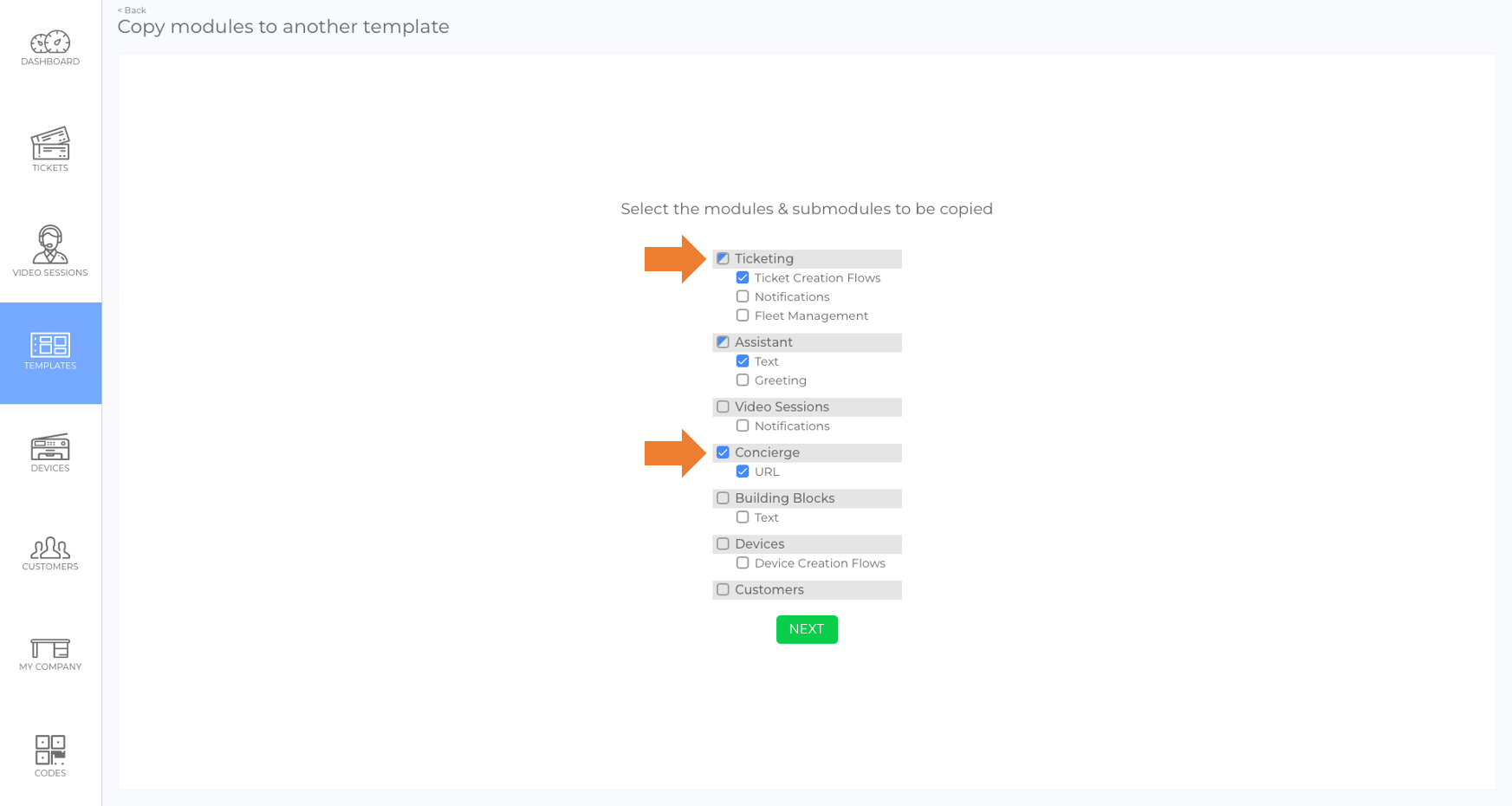
- Select the modules/submodules you want to copy from the list (picture).
Note: You can copy entire modules or individual submodules. If not all submodules of a module are selected, the checkbox next to the module is only filled in half. - Click next.
- Select a target template from the list.
- Confirm the pop-up window with copy Modules.
- You are now in the target template with the new module configuration.
Copying Submodule Elements
Note: It is not yet possible to copy individual submodule elements from one template to another.
Was this article helpful?
YesNo
 We use cookies on our website to give you the most relevant experience by remembering your preferences and repeat visits. By clicking “Accept All”, you consent to the use of ALL the cookies. However, you may visit "Cookie Settings" to provide a controlled consent.