Table Of Contents
Overview
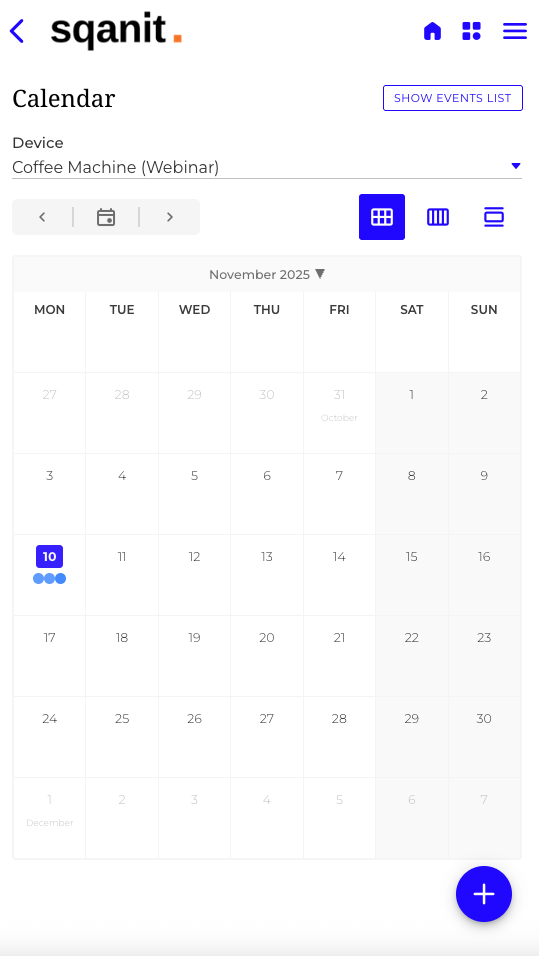
The Calendar Module enables task and event scheduling directly within the mobile application, offering a central overview of upcoming activities. Users can manage deadlines, service tasks, and related events connected to tickets, devices, and other entities. This module provides teams with an intuitive, visual interface for managing time-sensitive operations efficiently.
Navigation
- Open the Back Office.
- Select the desired Template.
- Navigate to the Modules tab and select Calendar Module.
- Toggle the switch to activate the Calendar Module setting.
- Edit the module settings to configure the calendar view and parameters.
- Click Save to apply the configuration.
Note:
The task module must be activated so that the calendar module can be activated and is visible in the back office and in the mobile application.
Features
- Task Scheduling: Create and manage events directly from the calendar. Double-click on any date (or the + button) to open the event creation dialog. Define parameters such as Task Configuration, Responsible person, Visibility, Duration, and Recurrence.
- Event Overview: See all upcoming deadlines, video sessions, and service tasks in one unified calendar view.
- Integration: Automatically display tasks created in Tickets or Fleet Management modules directly in the calendar.
- Filters: Refine calendar results by department, employee, author, or period to focus on specific workloads.

Use Cases
- Plan technician assignments and recurring maintenance visits.
- Visualise workloads across teams and optimize scheduling.
- Get a daily, weekly, or monthly overview of all service activities.
Good to Know
- Module availability depends on module activation at the company or template level.
- Calendar entries inherit permissions from linked tasks or tickets.
- Adjustments made within the calendar (e.g., moving or editing a task) instantly update the corresponding linked entity.
- Automatic synchronization ensures real-time consistency across related modules.
Troubleshooting
- Calendar not visible: Confirm the module is activated in Back Office → Modules at both company and template level.
- Tasks missing: Verify task assignment and active filter settings. Tasks not assigned to your user or team may be hidden.
- Events not updating: Refresh the view or check your permissions for the linked ticket or entity.
Was this article helpful?
YesNo
 We use cookies on our website to give you the most relevant experience by remembering your preferences and repeat visits. By clicking “Accept All”, you consent to the use of ALL the cookies. However, you may visit "Cookie Settings" to provide a controlled consent.